
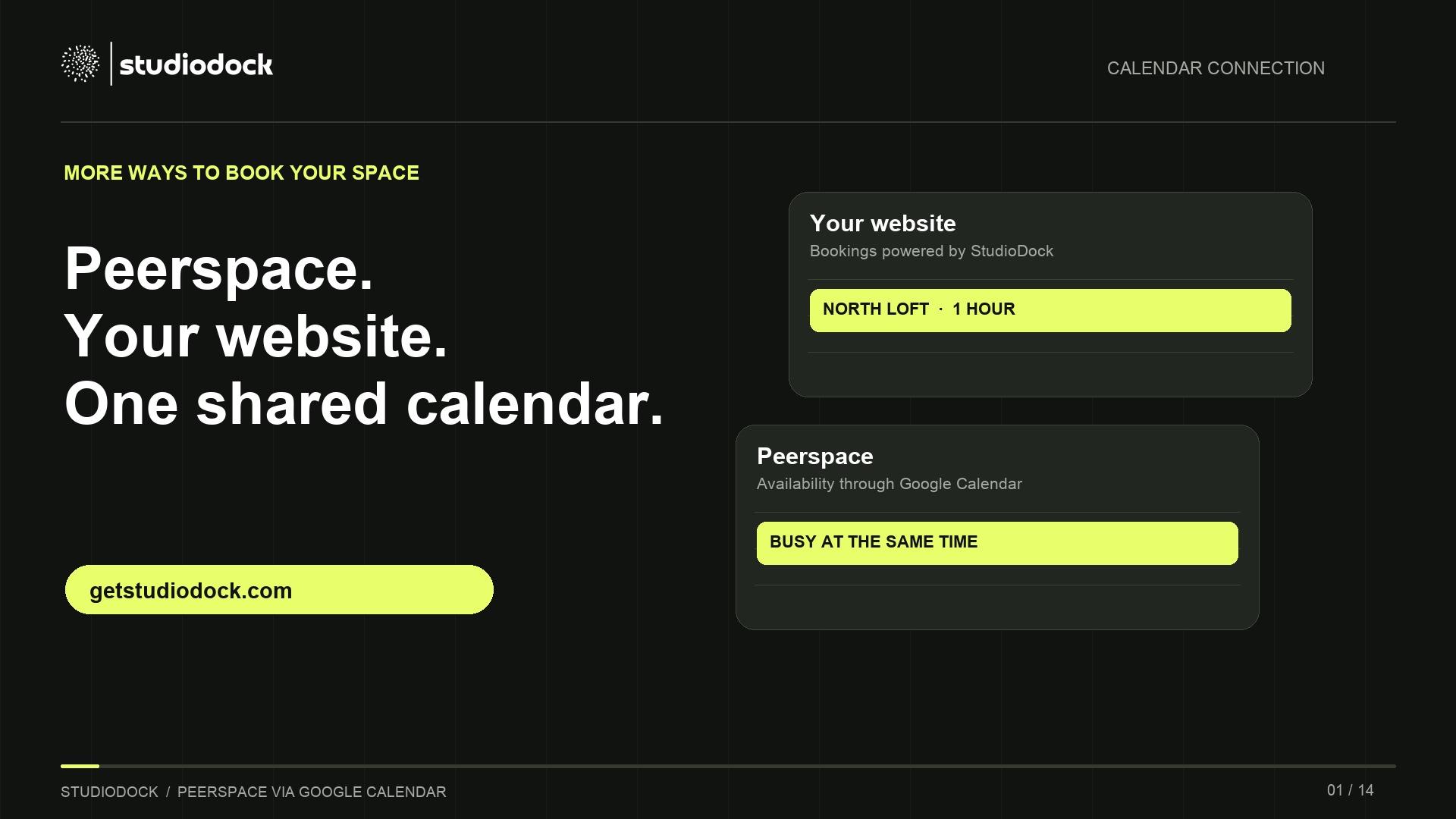
Your Peerspace listing and your studio website can both bring in bookings. Keeping their availability aligned is what makes that practical.
You can connect Peerspace and StudioDock through the same Google Calendar. StudioDock sends confirmed bookings to Google. Peerspace reads the calendar’s Busy times through its Cronofy connection. If you enable Google busy-time blocking in StudioDock, external Busy events can also close those times on your direct booking page.
For studio owners who already use Peerspace, this gives you a way to add direct studio bookings for customers who find your own website. The connection shares availability; each platform keeps its own reservations and payments.
See the connection in action
Watch the calendar connection on YouTube
Recorded with our Kopa Hub demo and a private Peerspace draft. Account details are hidden. The written steps below also provide a text alternative to the video.
What we tested
On November 14, 2026, we created a StudioDock demo booking, found its Google event and verified the corresponding Busy time in Peerspace. Moving the booking moved the Peerspace block. Cancelling it cleared the block.
We also tested Google Busy events blocking availability in StudioDock. Peerspace documents that its confirmed bookings appear on the connected external calendar. Our unpublished Peerspace draft could not receive a genuine confirmed reservation, so the complete Peerspace reservation to Google to StudioDock path still needs a real-listing test.
Choose the Google calendar for your space
You need Tenant Admin access in StudioDock, access to your Peerspace host calendar, and a Google account that owns the calendar you want to connect. Google Calendar sync is available on Starter, Pro and Custom.
A dedicated calendar for rental availability is a useful starting point. A personal appointment marked Busy can otherwise block rental time. Peerspace also recommends a separate Google calendar when you want to control which events affect your listing.
Use the real location and timezone for your space. Both systems must point to the same Google calendar, not merely the same Google account.
1. Connect Google Calendar in StudioDock
- Open Settings → Integrations and tracking → Calendar & reminders.
- Connect the Google account that owns your rental calendar.
- Choose the calendar that should receive your confirmed StudioDock bookings, then select Save target.
- Enable Google busy-time blocking if external Busy events should close direct-booking times.
Sending bookings to Google and reading Google Busy times are separate settings. Exporting a booking alone does not turn on inbound blocking. With the ordinary studio calendar setup, Busy periods affect every Space. Review the multiple-room guidance below before enabling this for a studio with independent rooms.
2. Connect that same calendar in Peerspace
- Open Calendar in your Peerspace host account and select the matching space.
- Open the external-calendar connection. In our new account, the flow started with Get started, then Sync calendar.
- Choose Google on the Cronofy provider screen.
- Review the provider terms and requested Google permissions. Sign in to the intended account.
- Select exactly the same calendar you chose in StudioDock, then choose Sync calendar.
- Check the connected-calendar status and run the booking tests below.
Peerspace uses Cronofy for this connection. In our pilot, Google requested broad calendar permissions, including editing and deleting accessible calendars. Review the actual permission screen before granting access; selecting one calendar later does not mean the authorization itself is limited to that calendar.
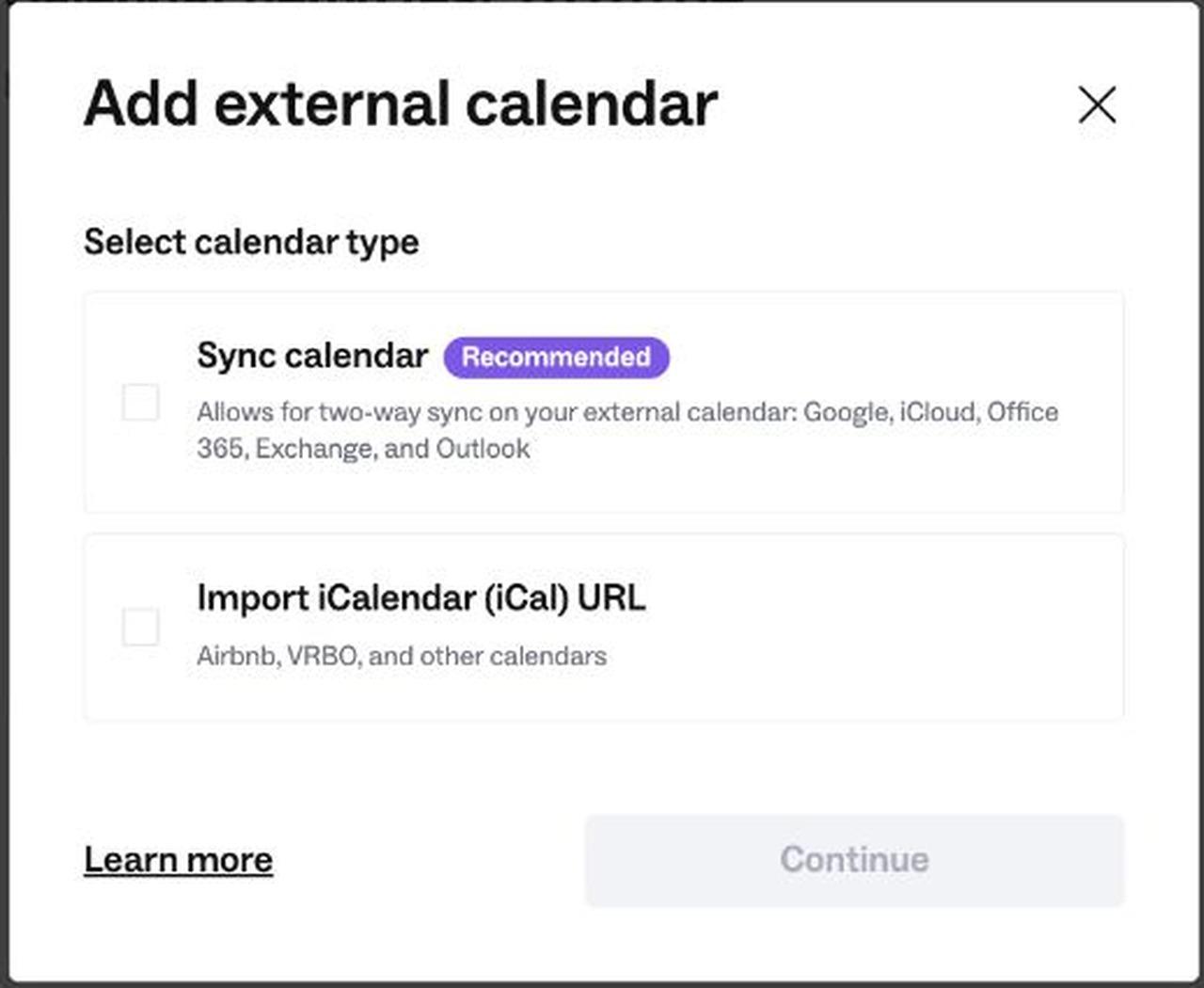
This setup uses the two products’ existing Google Calendar connections. You do not need to create a StudioDock webhook or configure a custom automation for this calendar bridge.
3. Test a booking, a move and a cancellation
Choose a future daytime slot at the space’s local time. Create a short test booking in StudioDock and verify its start and end in Google. After Peerspace refreshes, check that the corresponding time is Busy on the correct listing.
Move the booking. Check that the old slot opens and the new slot becomes Busy. Cancel it and check that the remaining block clears. A Connected badge confirms a connection, but these tests show whether the calendar changes you rely on are reaching the other side.

For the inbound Google path, create a Busy event on that calendar and check your public StudioDock booking page. Move the event, mark it Free, then remove it and verify availability changes as expected. For the complete reverse Peerspace path, repeat the check with a genuine confirmed Peerspace reservation and its changes.
If an event looks missing, compare local times
Our test used a Europe/Vilnius studio and an America/Los_Angeles Peerspace draft. On November 24, 2026, 14:00 in Vilnius was 04:00 in Los Angeles. Peerspace displayed that early-morning event within November 23’s overnight operating day. A 06:00 Los Angeles event appeared under November 24.
The event had arrived. We were looking under the wrong operating day. Check the previous day for an overnight event and compare the absolute start and end times. Use normal local daytime hours for an initial setup test. Keep real reservations at their agreed times.
Map independent rooms to separate calendars
StudioDock’s optional Calendars per Space feature lets independent rooms use different owned calendars on the same Google connection. A Tenant Admin enables it in Calendar & reminders. It is off by default.
Then open Spaces → Edit → Google Calendar for this Space, choose the room’s calendar and select Save calendar setting. Connect the corresponding Peerspace listing to that calendar. Busy-time blocking must also be enabled.
Existing exported bookings keep their original calendar after a Space mapping edit. Review future bookings when changing a mapping. If you rent a Full Space made up of several rooms, test every affected Peerspace listing. StudioDock’s internal linked-room protection does not by itself establish that every external listing gets a block.
The Google Calendar guide in your StudioDock workspace covers inherited calendars, skipping Google busy times and recovering an unavailable connection. Sign in to open it.
Common Peerspace calendar sync questions
How quickly does availability update?
Peerspace says its calendars sync every few minutes and pull events for the next seven months. Treat that as provider guidance rather than an instant-sync guarantee. Google exports and availability refreshes can also take time. Verify a change on both sides before relying on a recently updated slot.
Why is a Google event not blocking time?
Check the account and selected calendar on both sides, the event’s Busy or Free status, connection health and timezone. In StudioDock, check the busy-time blocking switch and the Space’s calendar choice. All-day events may default to Free, so inspect their availability status too.
Does Peerspace Block Time create a Google event?
A manual Peerspace Block Time entry did not export to Google in our demo. Treat it separately from a confirmed Peerspace booking. If you need a manual closure to affect both systems, place a Busy event on the shared Google calendar and verify the result.
Are Peerspace payments and customers imported?
This connection shares availability. External Busy periods do not create editable StudioDock reservations or import Peerspace customer records, invoices and payments. Keep each booking’s commercial details in the platform where it was made.
Is this a native Peerspace integration?
It is a Google Calendar bridge using StudioDock’s Google connection and Peerspace’s Cronofy connection. This guide does not imply an official partnership with Peerspace.
Keep the setup instructions close
Start with one space and one calendar. Verify a booking, its move and its cancellation, then test the inbound path you need. Expand to other rooms after checking their calendars separately.
For the Peerspace side, see its official calendar connection instructions and sync behavior and limits. For your direct-booking setup, sign in to the StudioDock Google Calendar guide or explore the Kopa Hub demo.
Give your studio a direct booking page
Try the Kopa Hub demo to explore room selection, equipment extras and checkout. Then connect the calendar you use for your own space.
Explore the studio booking demo