
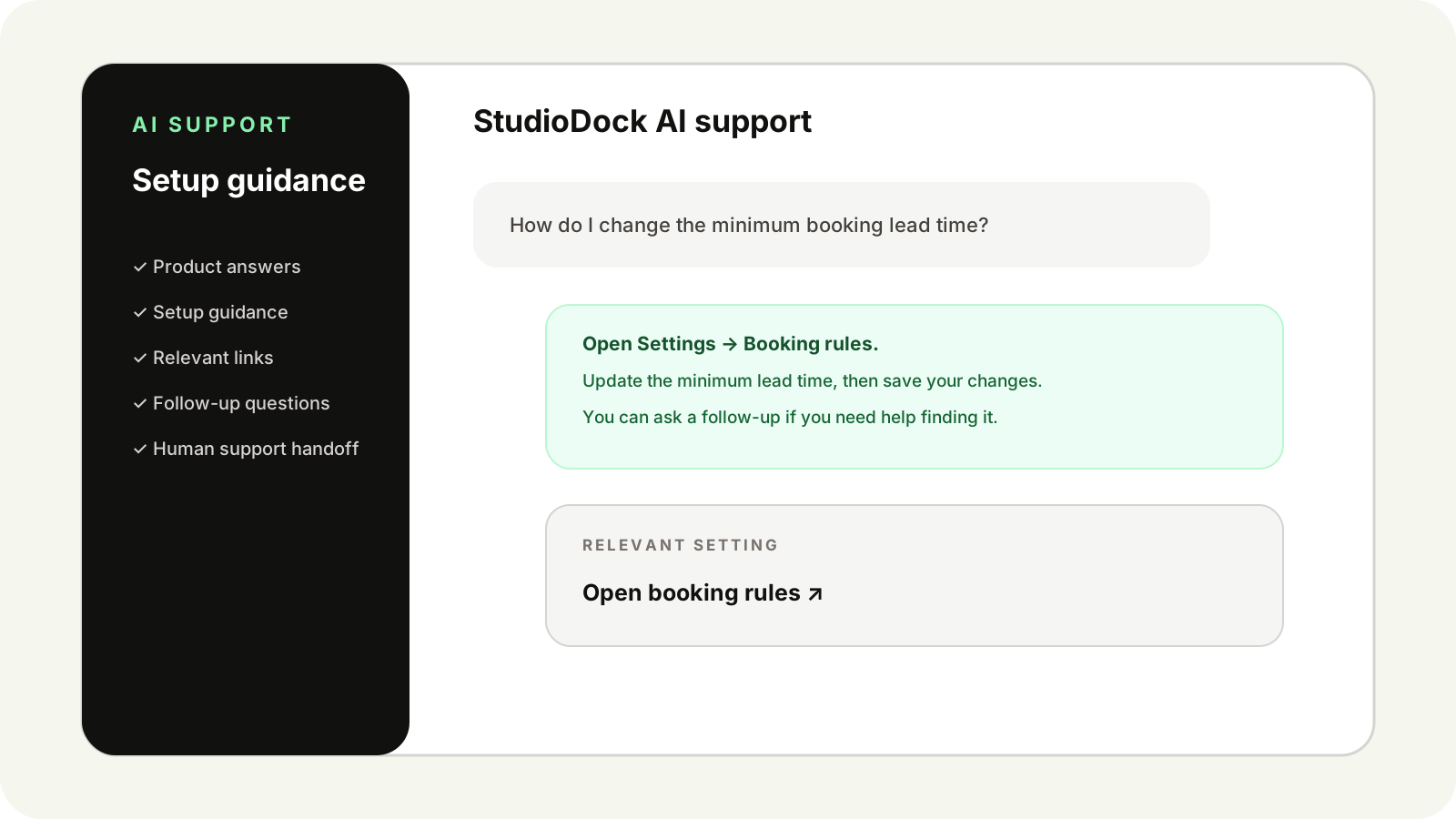
Studio changes usually happen in the middle of everything else. A new hourly rate, different opening hours or a question about your booking page can send you looking through menus.
You can now start that conversation inside StudioDock. Open Assistant in your workspace and tell it what you want to do.
It can explain your current setup, help you find the right setting and prepare supported changes for you to review. The same assistant helps when you are opening a new studio.
Get your first studio ready
When you are setting up StudioDock, describe your rooms and how you rent them. Include the prices you charge, when you open and any extras clients can book.
You might say:
We have a podcast room at €60 an hour on weekdays and €75 at weekends. We open from 9am to 8pm, and bookings should be at least two hours.
This is an example of the detail you can give it. The assistant asks about anything that is missing and helps put the room, prices and booking rules into your setup.
You can keep refining the draft in the conversation or switch to the usual setup form. Review the booking page and publish it when you are happy with how clients will book.
Handle the small changes that come up each week
Once your studio is running, Assistant stays available across the admin workspace. Use it to check a detail or prepare an update while the task is on your mind.
- Ask what your current weekday and weekend rates are.
- Change a room’s minimum booking duration or adjust its hourly price.
- Update opening hours or how much notice clients need before booking.
For example, ask it to change the weekday rate for your daylight studio to €65 and keep the weekend price as it is. It shows the current and proposed values. Check them, then choose Apply changes.
You can also ask for help with Booking Plans and simple equipment add-ons. If your request needs more detail, the assistant asks a follow-up. It points you to the relevant editor when a task needs to be finished there.
Pick up where you left off
Your conversation stays with your account as you move between admin pages. Close Assistant to get on with a booking, then open it again when you have a moment.
The assistant follows the language of your message. You can use English, Lithuanian and other supported languages. If the assistant asks which room you mean or what price to use, answer in the same conversation.
Documentation and Changelog are close at hand. If you need a person, choose Ask a person beside the answer you want the team to review.
Use StudioDock from ChatGPT or Claude
If you already work in ChatGPT or Claude, you can connect your StudioDock studio there too. Ask about availability, prepare a booking change or update supported booking rules from that conversation.
These connections are available on Pro and Custom. Follow the ChatGPT and Claude connection guide to link your studio to the assistant you use each day.
Ask Assistant about your studio
Open your workspace and choose Assistant. Start with the studio you run today, or the one you are getting ready to open.
Open your StudioDock workspace