
How to Connect Your Studio Booking System to ChatGPT, Claude, and MCP Agents
Reviewed by StudioDock Security. Last updated July 14, 2026.
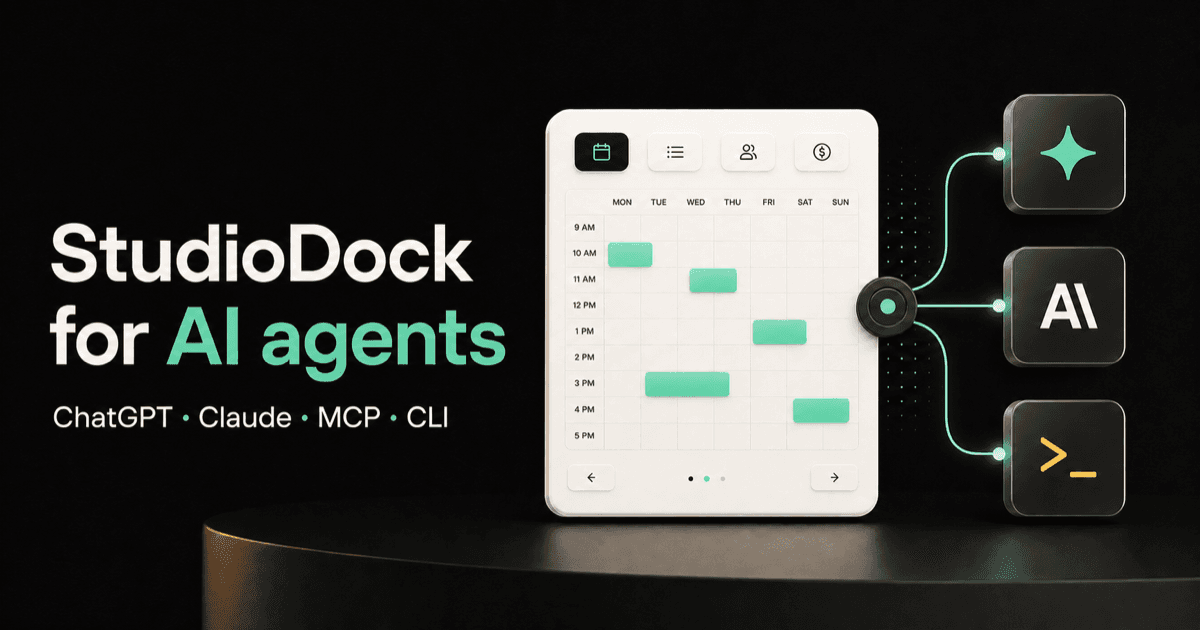
AI agents are becoming a normal interface for operational work. A studio owner may already ask ChatGPT or Claude to plan a week, summarize an issue, or prepare client communication. The risky step is letting that same agent reach a booking system without a clear boundary.
StudioDock Agent Gateway is built around that boundary. An agent gets tenant-scoped access to explicit tools, not broad access to an admin panel, database, or codebase.
Three integration surfaces, three different jobs
- Remote MCP is the conversational connection for ChatGPT, Claude, and other compatible agents.
- The StudioDock CLI is for terminal workflows, CI, private bots, and operators who need predictable JSON.
- Webhooks remain the event-delivery option when StudioDock should push a signed notification to another system.
REST, MCP, and CLI use the same tenant-scoped service layer. That matters because availability, cursors, times, scopes, errors, request IDs, and action validation should not behave differently depending on the interface.
Eight real workflows Agent Gateway can cover
1. Turn a sales enquiry into bookable options
A client asks for a two-hour podcast session next Tuesday afternoon. Instead of opening calendars and copying times into a reply, ask the agent to find matching slots for the right space and duration. The answer comes from live StudioDock availability, so the quote is based on the same capacity rules used by the public booking page.
Example: “Find every two-hour slot in the Podcast Room next Tuesday between 13:00 and 19:00. Format the best three options for a client reply.”
2. Generate tomorrow’s studio run sheet
Ask for confirmed bookings grouped by space, including local start and end times. A private bot can turn the structured result into an internal briefing for producers, reception, or freelancers without maintaining a second booking calendar.
Example: “Summarize tomorrow’s confirmed bookings by room, highlight gaps longer than two hours, and give me a short team briefing.”
3. Reschedule a booking from the conversation
The agent checks the requested time, prepares the change, and shows the current and proposed booking times. In interactive mode, the operator confirms that Before / After preview in the same conversation and the agent completes the reschedule. There is no second StudioDock login for that action.
Example: “Move booking BOOKING_ID to Friday at 16:00, but show me the exact change before applying it.”
4. Create a booking from an internal workflow
A sales or production bot can collect the required booking details, check availability, and prepare a new booking. Use interactive mode when a person should confirm the final space and time, or direct mode only for a trusted automation with a deliberately narrow write scope.
5. Block a room for maintenance or a private production
Create a full-day or timed closure for the whole workspace or one space. This is useful when a facilities workflow, maintenance bot, or internal production calendar needs StudioDock availability to reflect a real operational block.
Example: “Block the Podcast Room next Monday from 09:00 to 12:00 for microphone maintenance.”
6. Review or update supported booking rules
Read the current working hours, booking interval, minimum lead time, booking horizon, reminder status, and supported cancellation or reschedule windows. A scoped write connection can prepare a supported change and show the previous and new value before it is confirmed.
Example: “What is our minimum booking lead time? Change it to six hours, but show the Before / After value first.”
7. Answer owner-level performance questions
Use bounded analytics to retrieve booked hours, booking counts, and gross booking value for a period. The result can feed a weekly owner summary or an internal dashboard while StudioDock remains the calculation source.
Example: “Compare booked hours and gross booking value for this month with the same number of days last month.”
8. Power a private operations bot
The CLI returns predictable JSON for scheduled checks and internal tooling. A private bot can watch tomorrow’s workload, find unfilled gaps, prepare a team message, or flag a configuration mismatch without scraping the admin interface or duplicating booking logic.
Practical MCP use cases for a studio team
MCP works best when an operational question starts in natural language and the agent needs current StudioDock data before it can answer. Useful examples include:
- Availability and quoting: “Find a two-hour slot in the North Loft next Tuesday afternoon.” The agent can inspect spaces and live availability, then return bookable times in the studio timezone.
- Tomorrow’s run sheet: “Summarize tomorrow’s confirmed bookings by space.” The response can group bookings and times without requiring the operator to export a calendar.
- Booking search: “Which bookings changed this week?” or “Show the next 20 confirmed bookings.” Cursor-based results let the agent work through larger periods safely.
- Performance questions: “How many booked hours and how much gross booking value did we record this month?” Analytics returns operational aggregates for a bounded period.
- Customer lookup: “Find the client record for Northwind Productions.” This works only when the connection has the separate customer permission.
- Configuration guidance: “What is our current minimum lead time and booking horizon?” The agent reads the small StudioDock configuration surface that is relevant to booking operations.
A conversational answer can also continue into a supported action. For example: “Move booking BOOKING_ID to Friday at 16:00” validates the new time and shows a reschedule preview. With an interactive connection, the operator confirms that Before / After result in the same conversation and the agent applies it.
Practical CLI use cases for operators and private bots
The CLI is useful when the result needs to be repeatable, saved as JSON, or passed to another internal step. It supports the same booking rules as MCP without requiring a chat interface.
Check availability before preparing a quote
studiodock availability \
  --space-id SPACE_ID \
  --date 2026-08-14 \
  --duration-minutes 120 \
  --json
Build a daily operations summary
studiodock bookings \
  --from 2026-08-14T00:00:00Z \
  --to 2026-08-15T00:00:00Z \
  --status CONFIRMED \
  --json
A private bot can transform that versioned JSON into a staff briefing, internal dashboard, or Slack message while StudioDock remains the source of booking truth.
Monitor studio performance
studiodock analytics \
  --from 2026-08-01T00:00:00Z \
  --to 2026-09-01T00:00:00Z \
  --json
Review and confirm a reschedule from the CLI
studiodock action prepare booking-reschedule \
  --booking-id BOOKING_ID \
  --date 2026-08-14 \
  --start-time 16:00 \
  --end-time 17:00 \
  --idempotency-key reschedule-BOOKING_ID-2026-08-14

studiodock action confirm ACTION_ID   --confirmation-token CONFIRMATION_TOKEN
studiodock action status ACTION_ID --json
The same pattern works for a new booking, studio closure, or supported booking-setting update. Interactive connections confirm in the CLI or agent that prepared the action. A trusted direct connection can add --execute and complete the supported change in one command.
Block one room for maintenance
studiodock action prepare closure --date 2026-08-17 --full-day false --start-time 09:00 --end-time 12:00 --scope SPACE --space-id SPACE_ID --reason "Microphone maintenance"Prepare a supported booking-rule change
studiodock action prepare settings --changes '{"publicBookingMinimumLeadTimeHours":6}'The prepare response contains the action id, Before / After preview, and—when interactive confirmation is selected—a short-lived confirmation token. Direct connections can use --execute for the same bounded command.
When to choose MCP, CLI, or webhooks
- Choose MCP when a person wants to ask an operational question or guide a multi-step task through an AI assistant.
- Choose the CLI for repeatable terminal workflows, internal scripts, scheduled checks, JSON exports, and private bots.
- Choose webhooks when an external system should react automatically after a StudioDock event such as a booking creation or update.
Many teams will use all three: a webhook triggers an internal workflow, the CLI gathers structured context, and an MCP agent helps a human review or continue the task.
Use cases Agent Gateway intentionally does not replace
Agent Gateway is an operations interface, not a replacement for StudioDock’s visual calendar, checkout, payment setup, team management, or detailed booking administration. Use it where a current answer or bounded action saves context switching. Keep complex exceptions and workflows that need visual judgment in the StudioDock admin.
OAuth connects the agent to one tenant
A Scale Tenant Admin creates an OAuth client in Settings → Integrations, registers the exact callback URL supplied by the AI provider, and selects the smallest useful set of scopes. StudioDock uses PKCE, strict callback matching, audience validation, opaque hashed tokens, rotation, expiry, and revocation.
Customer contact details are deliberately separated behind customers:read. A connection can list bookings without receiving names, email addresses, phone numbers, or notes.
Connect once, then finish the work in your agent
An interactive connection does not make a supported change invisibly. It validates the request and shows a payload-bound Before / After preview in the conversation where the request started.
- The agent validates booking creation, rescheduling, a closure, or a supported settings update.
- The same conversation shows the action, expiry, and Before / After details.
- The operator confirms or declines it without leaving the agent.
- StudioDock validates the bound payload again, executes it once, and records the result.
Short-lived confirmation tokens, connection binding, idempotency, and action expiry reduce accidental replays. Teams that explicitly trust an automation can select direct execution when creating its connection; read-only mode is available for integrations that should never change data.
Access stays narrow and reviewable
Each connection belongs to one StudioDock workspace and receives only the permissions selected by its Tenant Admin. Sensitive customer details use a separate permission, connections can be revoked, and the admin audit history shows how the integration has been used.
Operational changes stay within the supported Agent Gateway workflows. StudioDock is used to grant or revoke the connection and inspect the audit history, not as a mandatory stop for every action. If a requested task is outside the supported surface, the agent should explain the limitation and direct the operator to the relevant StudioDock page or support.
AI support inside StudioDock
The floating AI support assistant is available to signed-in studio teams on paid plans, active trials, and expired trials. It helps teams understand StudioDock features, continue with follow-up questions, and open the relevant guide or setting.
Managers, Freelancers, and expired trials receive step-by-step guidance. An active Tenant Admin can also review a supported Before / After setting suggestion before confirming it. Questions that need a person offer a direct support email handoff.
Typical questions include “Where do I change the minimum booking lead time?”, “How do booking intervals work?”, “Which plan includes the master calendar?”, and “Where can I configure reminder emails?”. The assistant stays focused on StudioDock rather than becoming a general-purpose chatbot.
Example MCP and CLI setup
Use https://www.getstudiodock.com/api/mcp as the remote MCP URL in ChatGPT, Claude, or another compatible client.
Remote MCP URL
https://www.getstudiodock.com/api/mcp
The StudioDock CLI uses the same service and JSON contracts for terminal, CI, and private-bot workflows. Install it from npm, create a CLI OAuth client in StudioDock, and sign in from the terminal:
npm install -g studiodock-cli
studiodock auth login --client-id sd_cli_…
studiodock spaces --json
studiodock availability --space-id SPACE_ID --date 2026-08-14 --duration-minutes 60
Start with read-only mode. Add a write scope only when the workflow genuinely needs to change something, choose in-agent confirmation for people, and reserve direct execution for trusted automation. Test execution and revocation on a non-production tenant before inviting the wider team.
The principle
The agent can be flexible, but the booking system remains authoritative. StudioDock keeps tenant boundaries, permissions, action validation, execution, and audit inside the system that owns the booking while letting the operator complete the workflow from their chosen agent.
Ready to upgrade your studio?
Join the creative spaces switching to StudioDock to maximize every booking hour.
Start your 7-day free trial